 Strata

Memory companion
See where your
RAM goes.
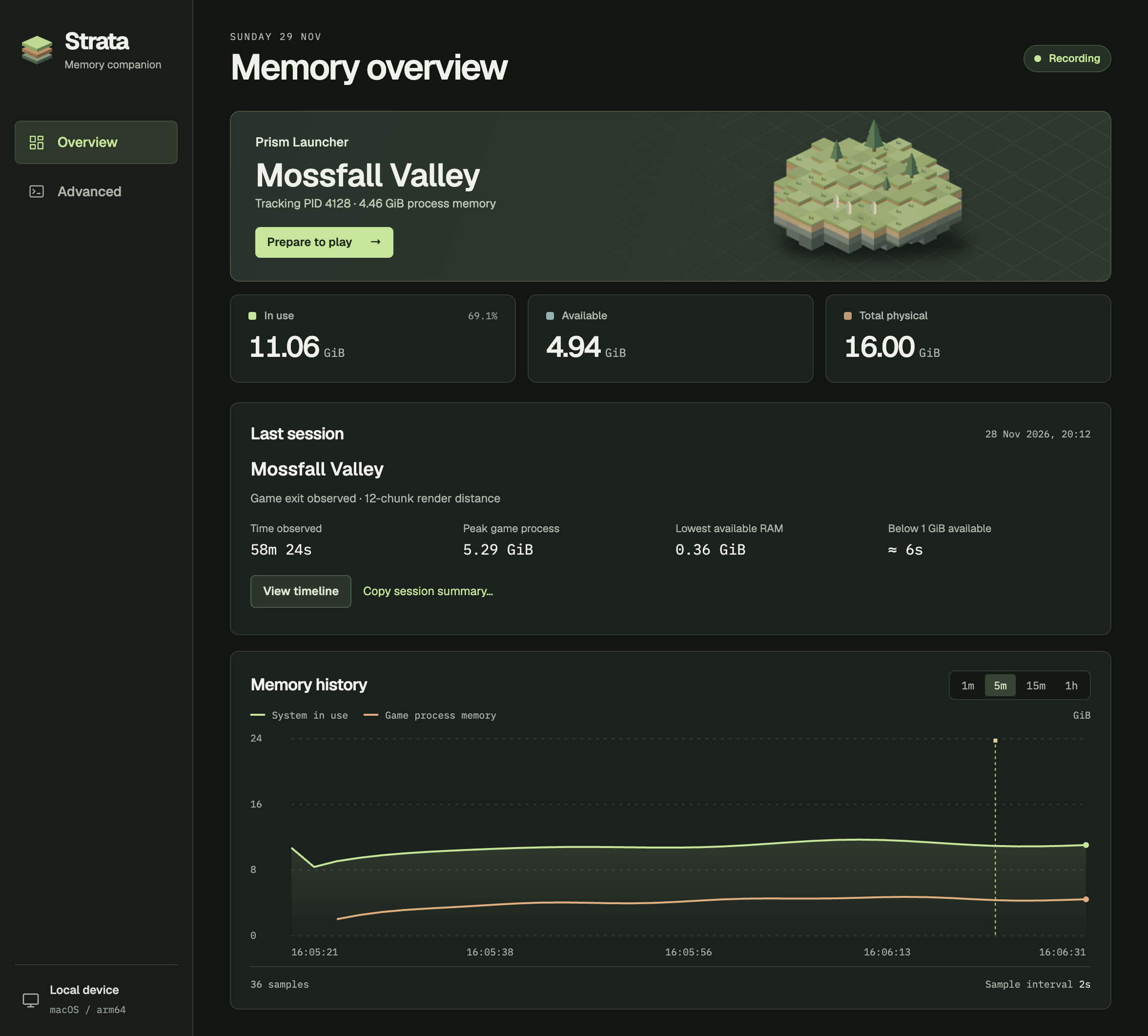
Strata records memory while you play Minecraft Java Edition with Prism Launcher. Mark a stutter and see what was happening when you felt it.
Test build 0.1.0 · 116 MiB · Unsigned installer
Your first session
Pick your instance.
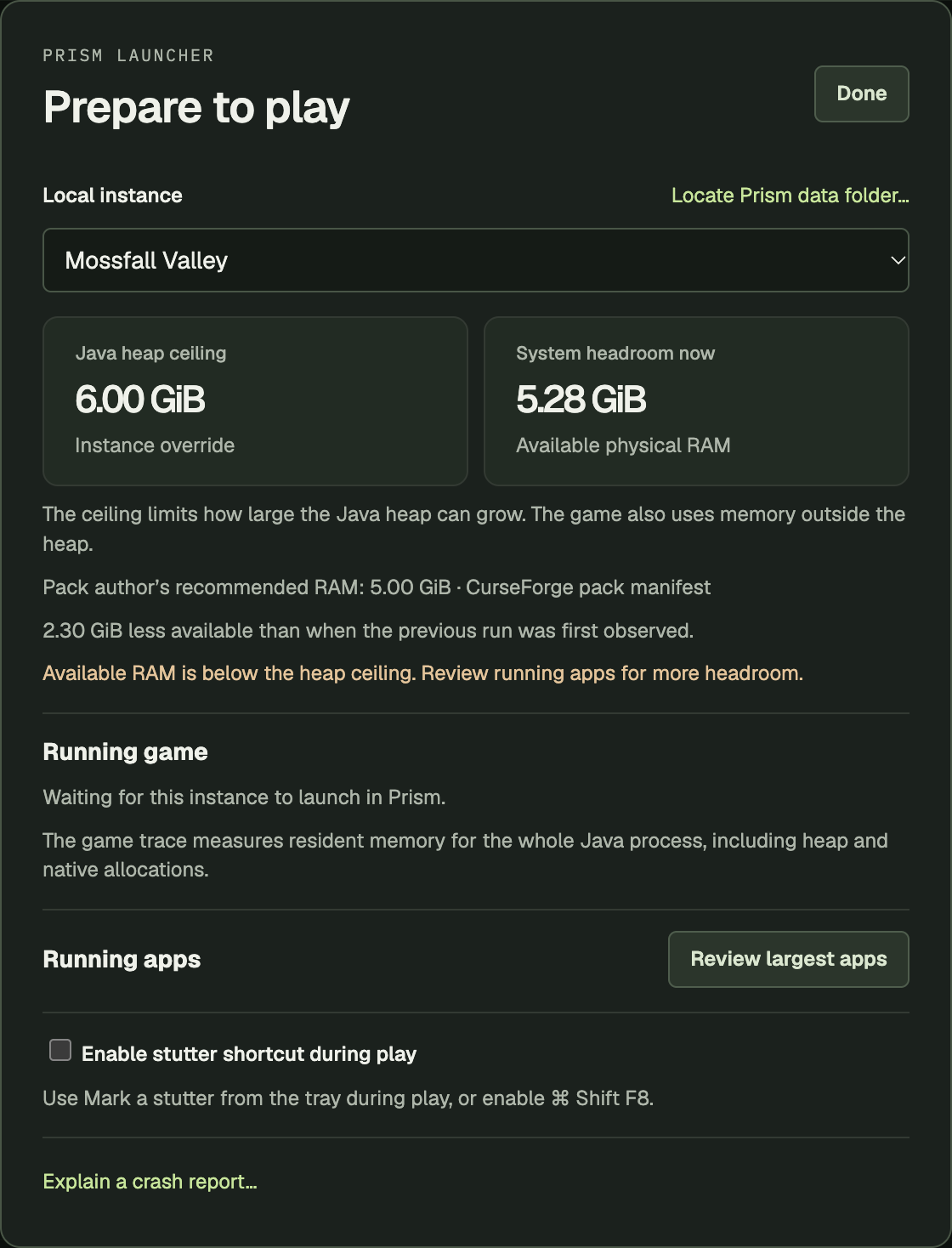
Open Prepare to play and select your pack. If RAM looks tight, review running apps, close one yourself, and recheck.
Play as usual.
Launch the game in Prism. Close the Strata window if you like. Use Mark a stutter from the tray whenever play feels rough.
Read the recap.
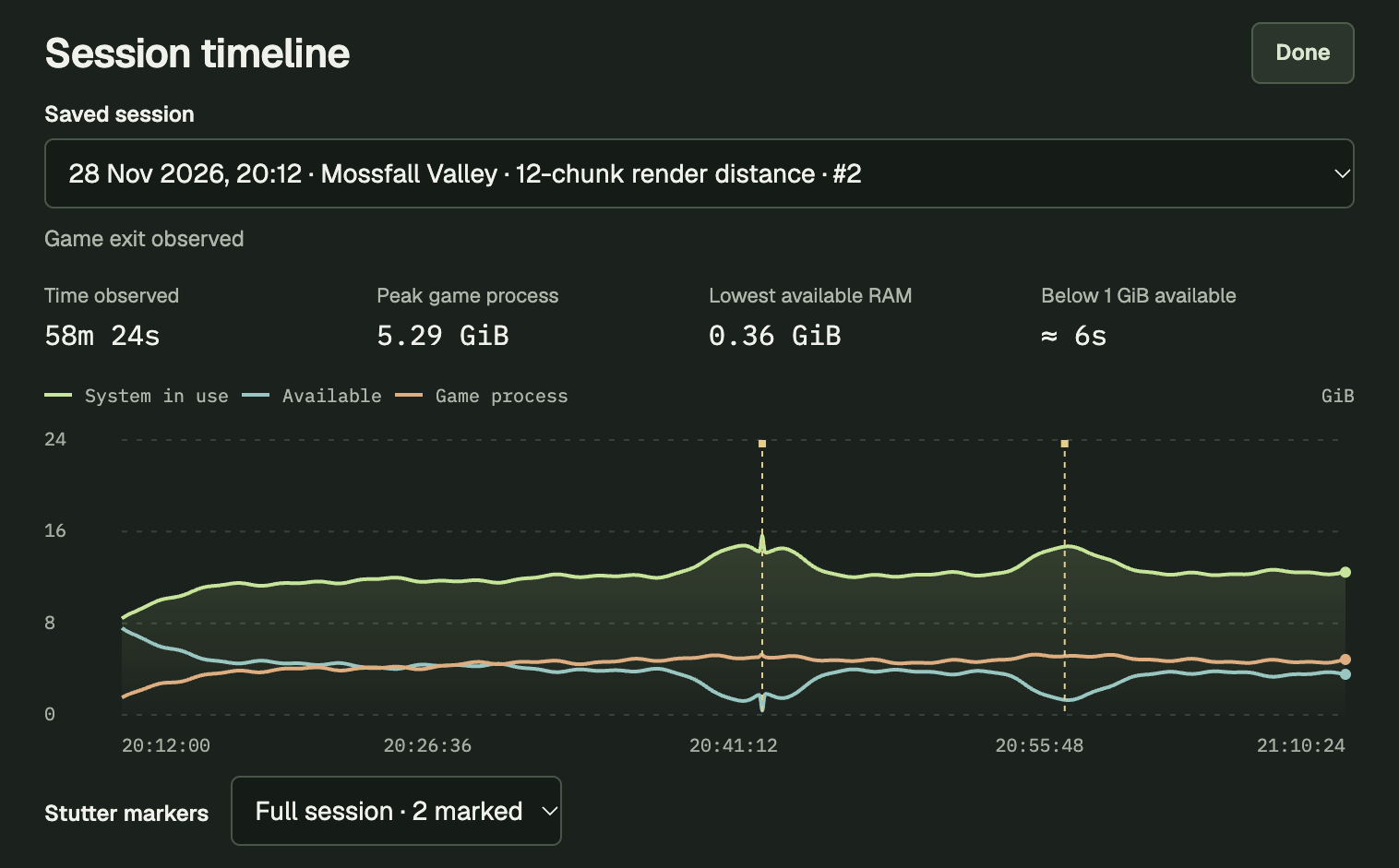
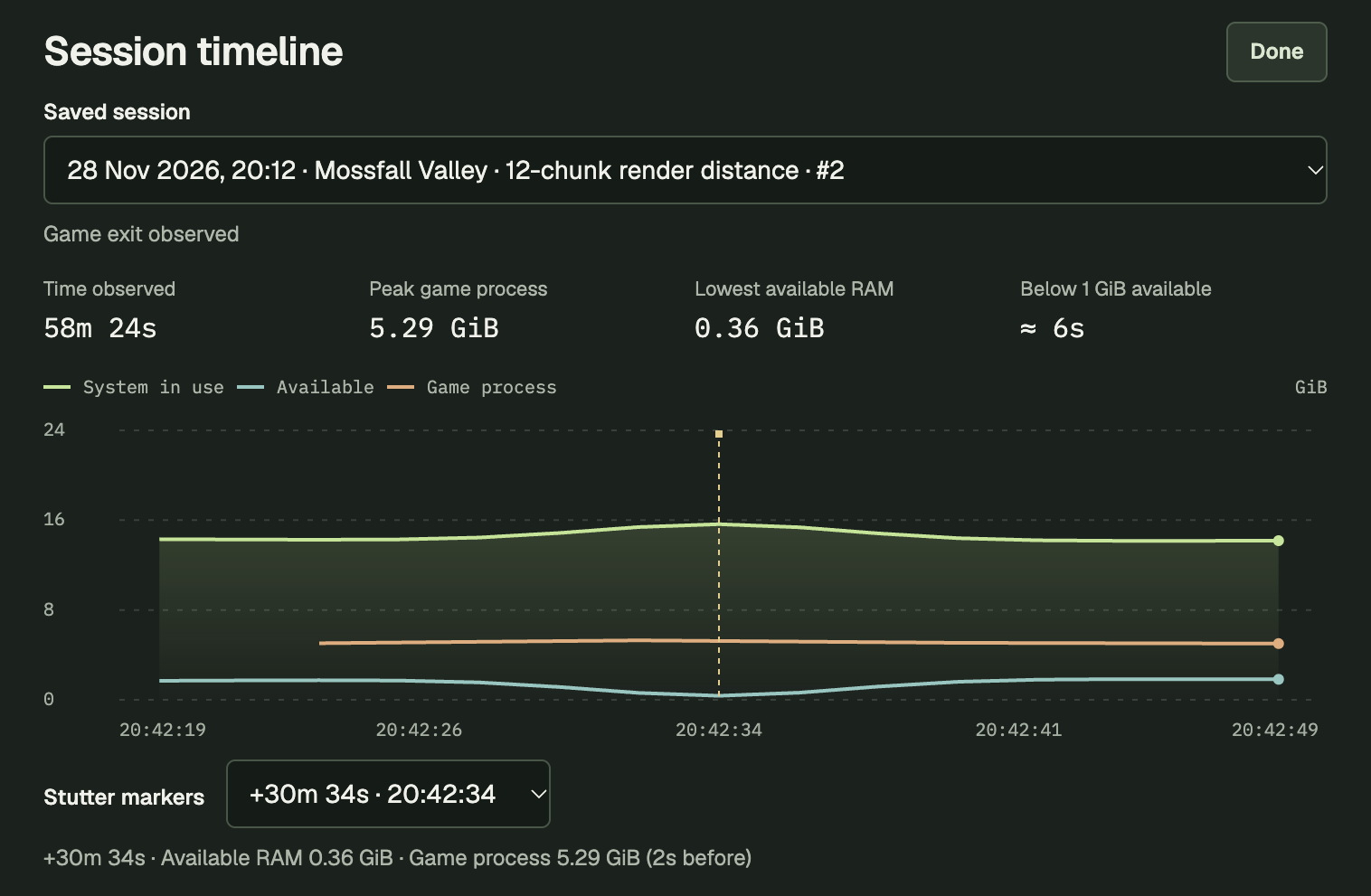
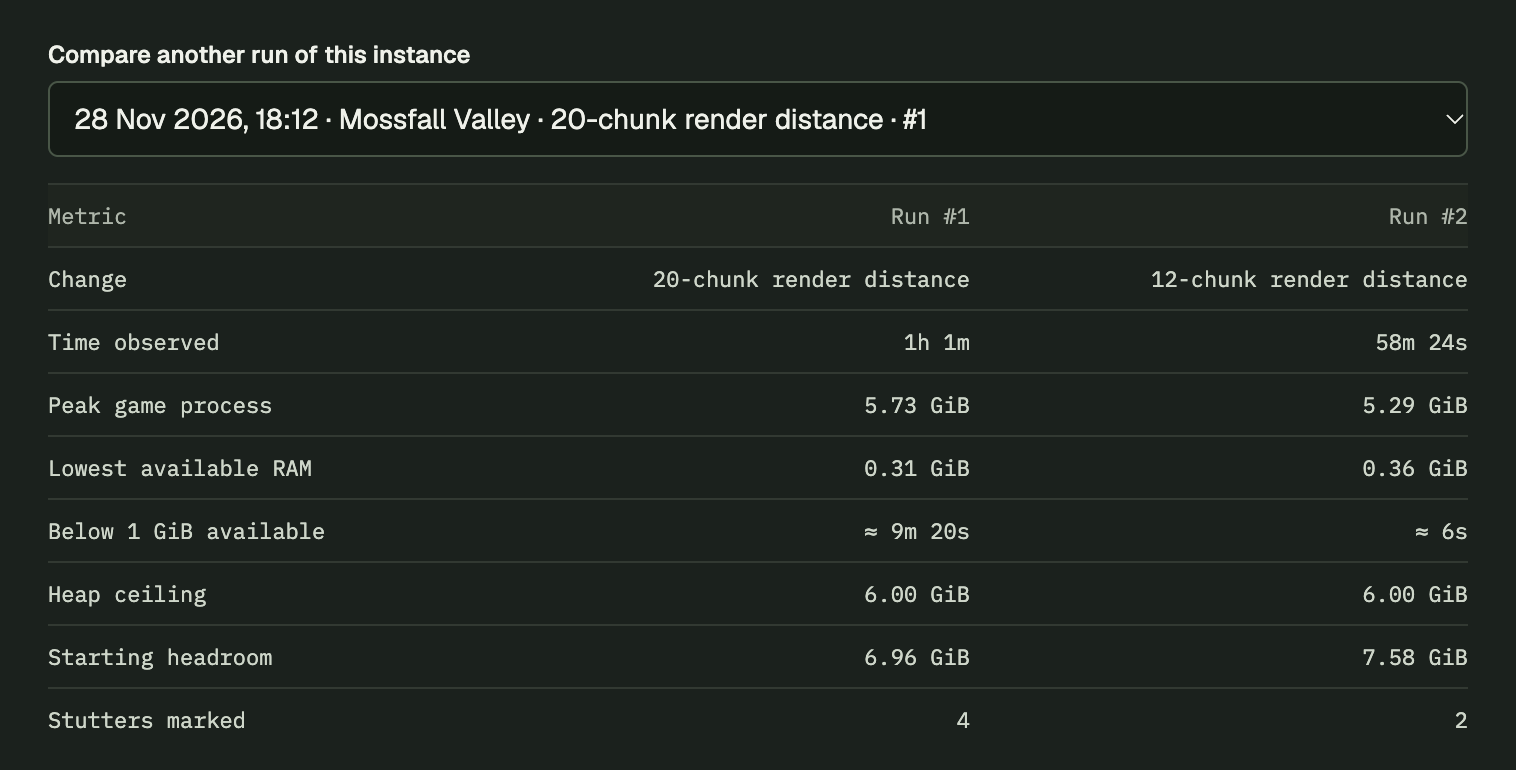
After the game exits, choose Last session → View timeline. Inspect a marker or copy an editable summary for support.
Frequently asked
questions
Will Strata change my game or close other apps?
Strata reads your launcher settings and measures memory. You choose which apps to close, then recheck to see how much RAM is available. You make any changes to the game in Prism.
How is the Java heap ceiling different from game memory?
The heap ceiling is the maximum Java heap configured for the instance. The graph measures resident memory for the whole game process, including native allocations outside the heap.
Can a marker tell me why my game stuttered?
A marker shows the memory readings around the time you felt a hitch. It helps you investigate whether headroom was low. Other causes need their own measurements.
What happens when I close Strata?
Closing the dashboard keeps the tray recorder running. Reopen it to see the intervening history. Choosing Quit Strata stops recording. Saved game sessions remain available after a restart.
Where does my session history go?
Recordings, markers and notes stay on your computer. If you want help, you can preview and edit a summary before copying it. The generated text omits local paths, account names and private notes.